Calculate freight costs (Rate calculator)
See what rates are available for any given origin and destination
Written By Mattias Hägerstrand
Last updated About 4 hours ago
The Rate Calculator can be used to see all matching rates you have available in the system. Enter information about origin and destination, a shipping date and a weight, click ‘Calculate’ and you get all available rates that match your criteria.
Select ‘Rates’ > ‘Calculator’ in the menu.
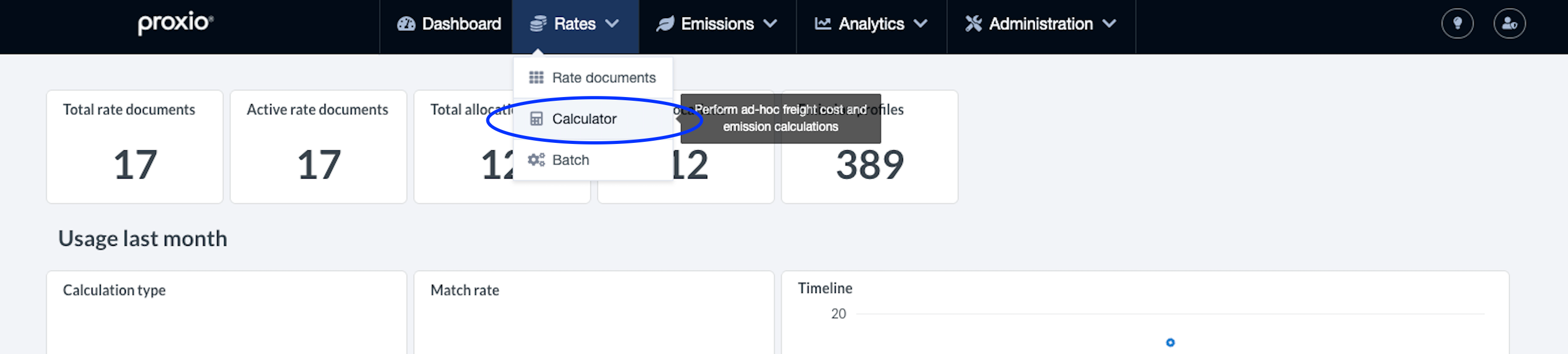
Setting up the appropriate filters
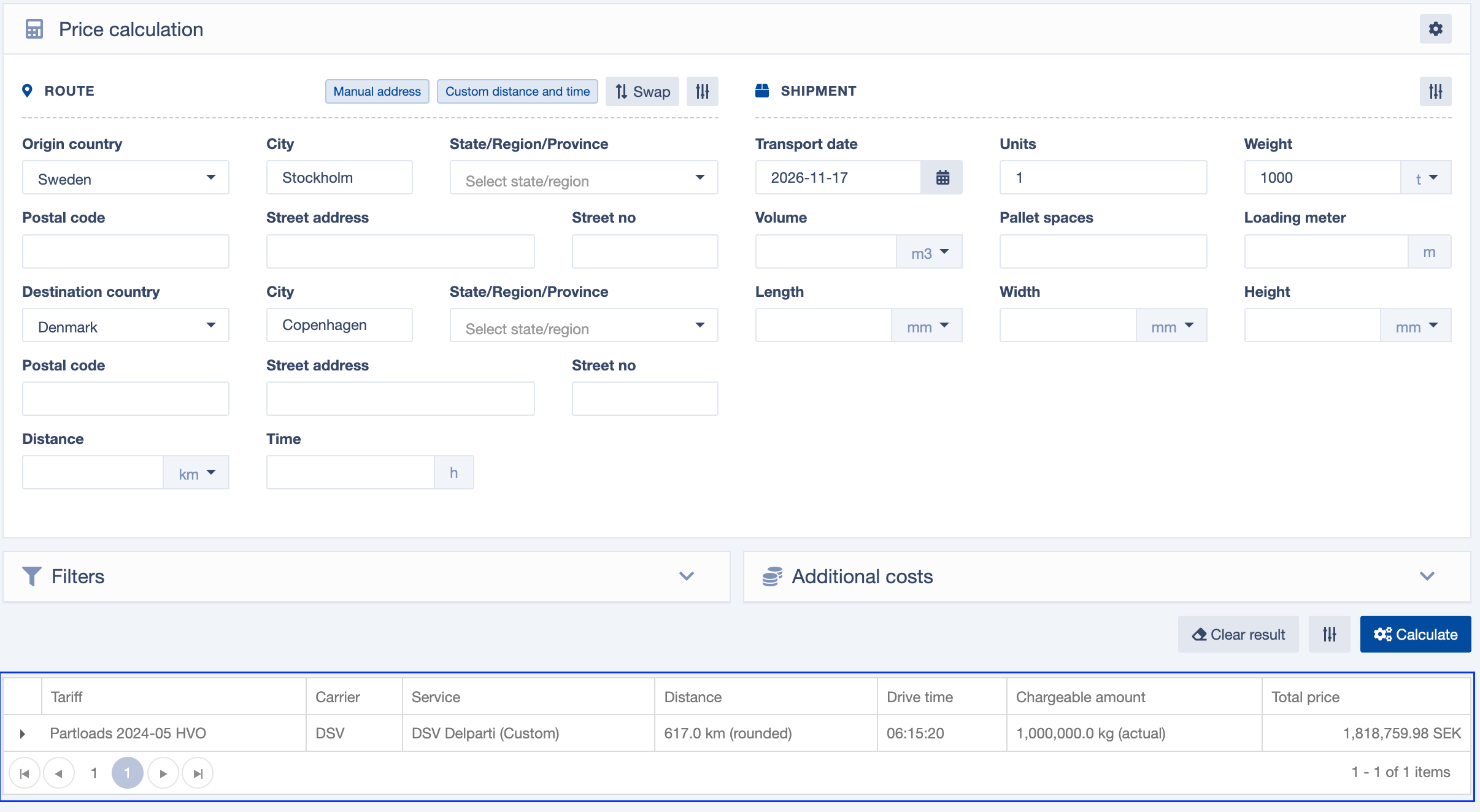
The calculator has two main sections.
Route – enter origin and destination: country, city, state/region/province, postal code and street address. Use ‘Swap’ to switch origin and destination.
Shipment – enter details about the shipment. Transport date and weight are mandatory. Choose the unit next to each field, for example kg or lb, m³ and mm or ft.
When you have entered the Route and Shipment information, click the ‘Calculate’ button and the results will be displayed on the screen, underneath the search fields.
Each part of the form has its own settings button.
Settings
Calculation settings (gear icon, top right): include CO2e and ETA / transit time in the result.
Route settings: choose how to enter locations – you have three options:
search address,
UN/LOCODE and IATA codes (airports and ports),
manual address.
You can also turn on custom distance and time, and exact location matching. ‘Reset saved locations’ clears saved addresses.
Shipment settings: show or hide the dimension fields (length, width, height), and mark the shipment as booked with EDI.
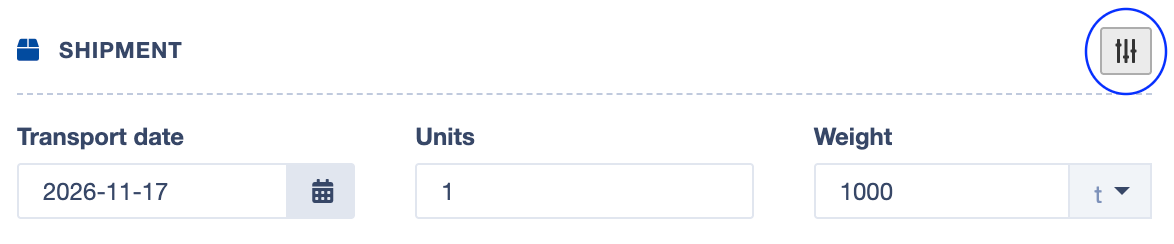
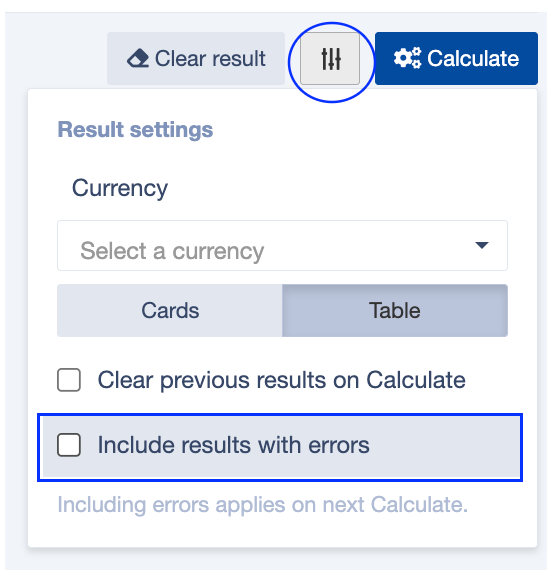
Shipment settings Result settings (next to ‘Calculate’): here you can choose currency, show results as cards or a table, clear previous results on each calculation, and include results with errors.
The default units (metric or imperial) for your organisation are set by Proxio technical support team. Contact us if you want to change the default settings for your organization.
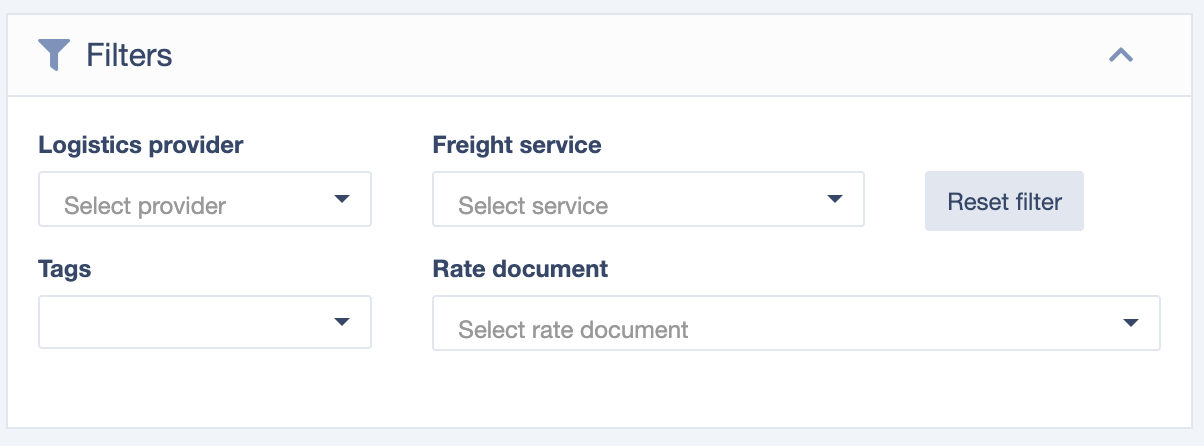
Open the ‘Filters’ panel to limit which rates are included in the result.
Filters
You can filter the result by Tag, Logistics Service Provider, Freight Service or down to a specific Rate Document (rate sheet).
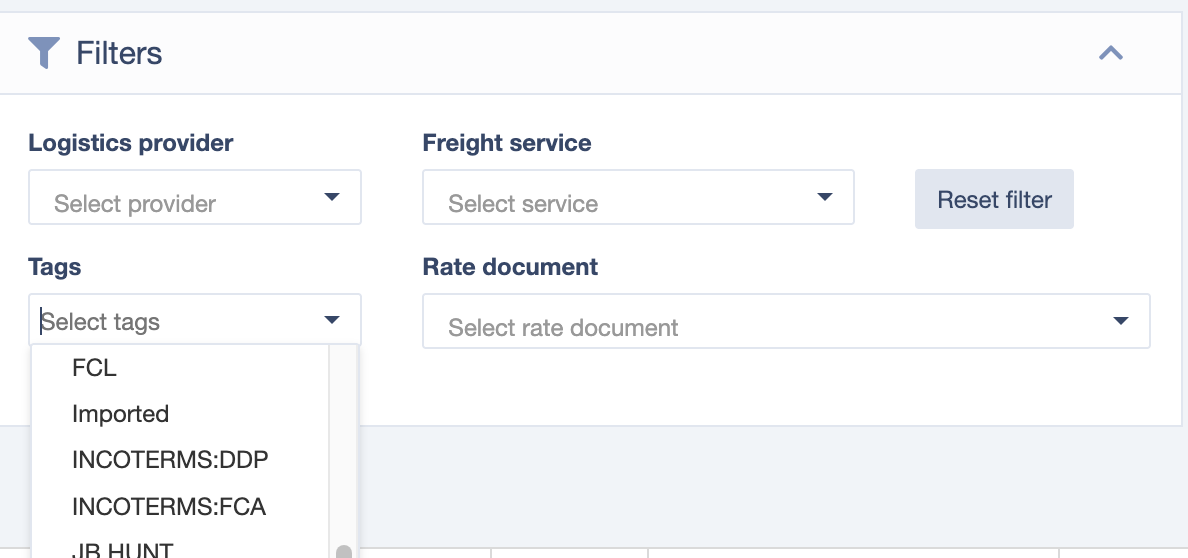
For practical usage, it’s recommend that you use the Tags to limit the number of responses you get. You can also use the tags to limit the result on a carrier (such as “DHL”) or mode of transport such as “ROAD”. You can see all available tags by clicking on each of the input fields, and a list of options will be visible.
Note: Adding new tags can only be made by users with administrator role.
Additional Costs
Open the ‘Additional costs’ panel to add services you need to include in the result. You can also enter COD amount, insurable value and hazardous class codes. Examples of addon costs could be Tail lift surcharges, ADR / Dangerous Goods Surcharges, Notification fee and more. To include these costs, you need to know which addon code to input in the Desired addon box.
Once all necessary information has been provided you press ‘Calculate’ and the system will perform a price query against all relevant tariffs.
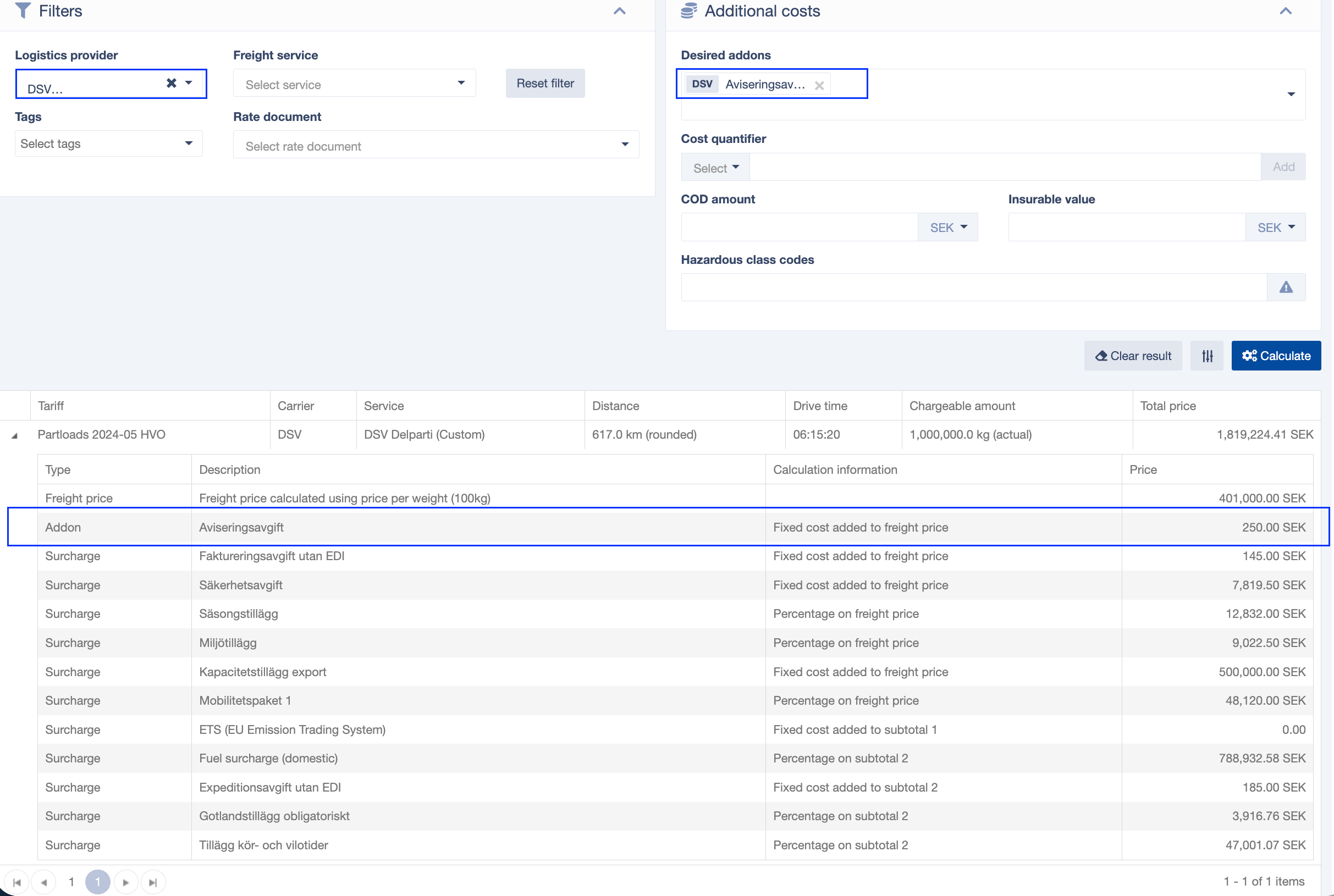
The results table.
In the Result table the system returns all results that were possible to calculate.
The results are ordered in ascending order based on price, meaning that the lowest price is at the top and the highest price at the bottom. If your result includes rows with a red warning triangle you most likely have the “Include results with errors” toggle set to YES. If you want to exclude those rows, you can turn it off under ‘Result settings’.
Note: If you have the field ‘Priority’ specified in a Rate Document, the prices from this rate sheet will be sorted higher than a rate sheet with a higher Priority number or if there is no given priority for the rate sheet (Default).
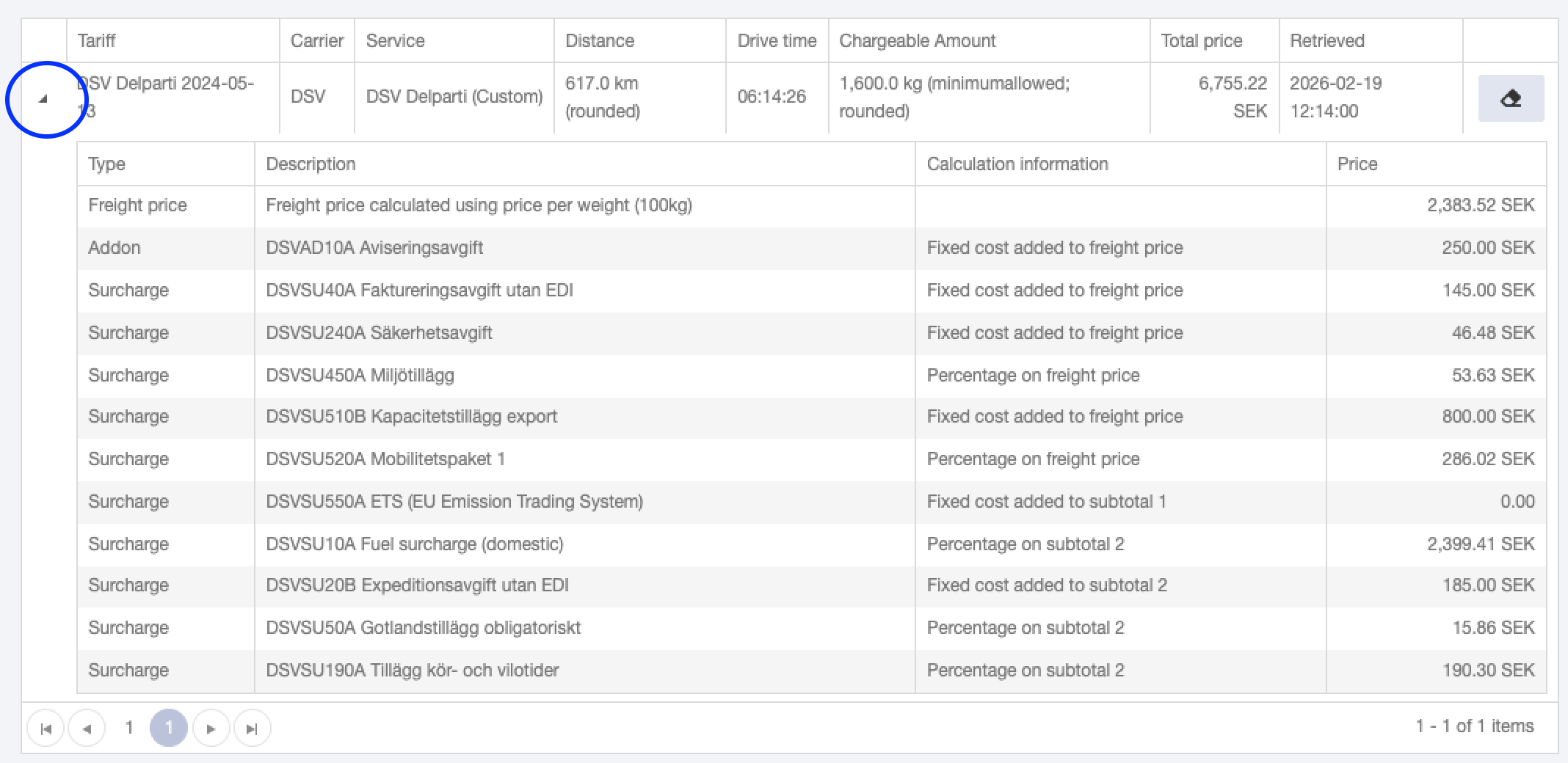
On the far left you can expand each price row to see a detailed description of the price components. The total shipment price is also broken down on price component level.
Was this helpful?
Still need help? Share an idea